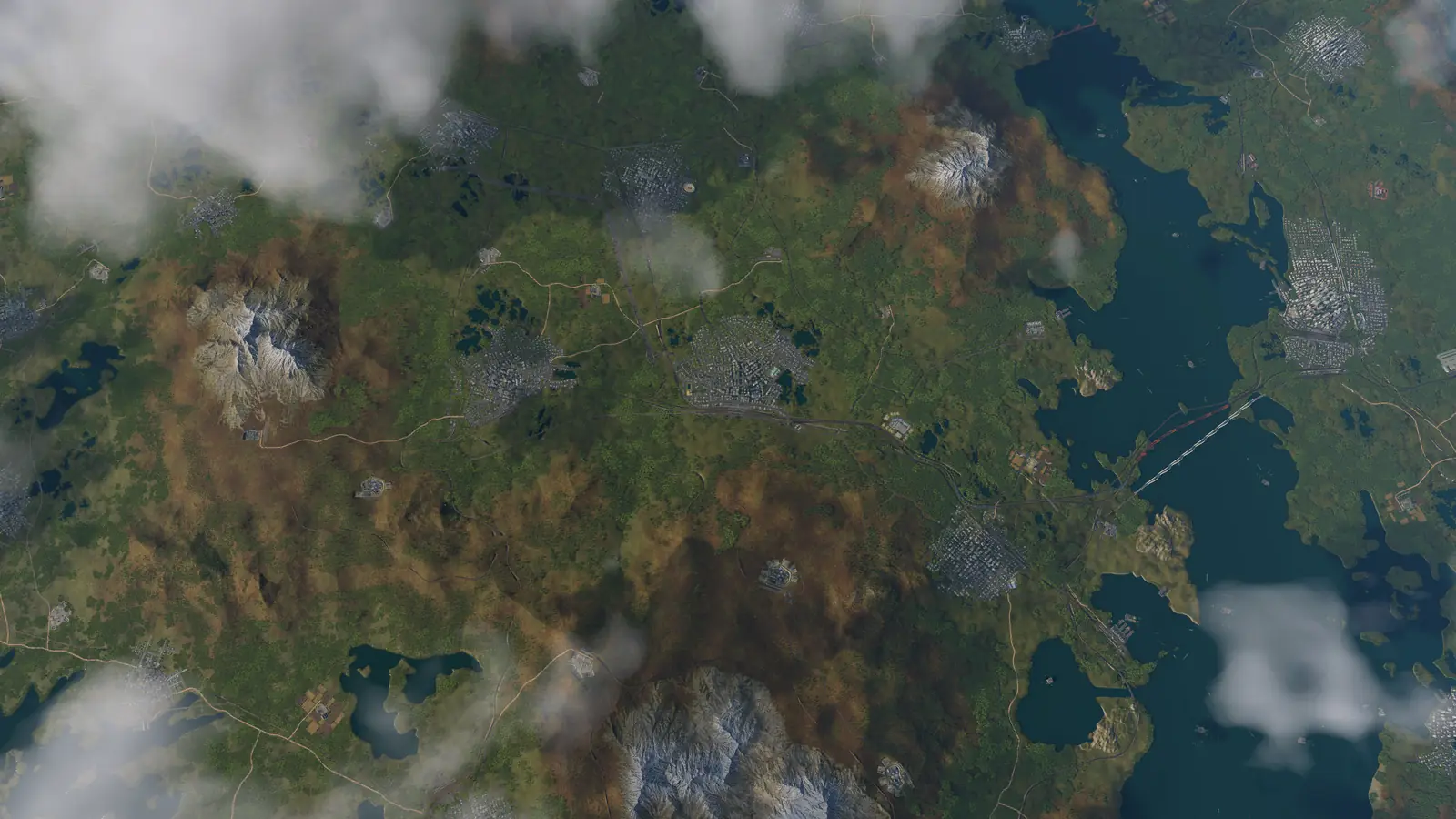
How to turn on experimental map sizes
Tiny, Huge, Megalomaniac, and Gigantomaniac are hidden behind one switch in the game's settings file. On PC:
- Open your userdata folder. The quickest way is the button in the game: Settings › Advanced › Open User Data Folder. Otherwise, use the folder for your store in the list below.
- Quit Transport Fever 3 and leave the folder open. Change the file with a text editor only while the game is not running.
- Open settings.lua in a plain text editor and find
experimentalMapFeatures. The keys in the file are usually sorted alphabetically. - Set it to true and save. The line should read
experimentalMapFeatures = true, - Start the game. The four extra sizes now show up in the Map Size list when you set up a new game or a new map in the map editor.
Where the userdata folder is
- Steam on Windows
C:\Program Files (x86)\Steam\userdata\<user-number>\3493540\local- Steam on Linux
~/.local/share/Steam/userdata/<user-number>/3493540/localor~/.steam/steam/userdata/<user-number>/3493540/local- Steam on macOS
/Users/<username>/Library/Application Support/Steam/userdata/<user-number>/3493540/local- GOG or Epic on Windows
C:\Users\<username>\AppData\Roaming\Transport Fever 3- GOG on Linux
~/.local/share/Transport Fever 3- GOG or Epic on macOS
/Users/<username>/Library/Application Support/Transport Fever 3
Install locations can differ. Under Steam, <user-number> is the numbered folder of your Steam account; <username> is your user name on the computer. On macOS the Library folder is hidden in Finder by default.
The same switch also lets you change the economy (the Industries option) of an existing save, which the manual warns can make a game unstable. Keep a copy of the save before you try that. The manual lists this switch among experimental settings meant for advanced users, to be used at your own risk, and they do not exist on console.
What a bigger map asks of your PC
A bigger map needs more memory and, in most cases, more processor power; smaller maps run more smoothly on most computers. The experimental sizes need at least 16 GB of RAM, and the jump is large: a Gigantomaniac square has 12.25 times the land of a Small one and 3.1 times that of Very Large. Creating a new map takes longer the bigger it is, and longer again with more towns and industries.
Heightmaps: which image size each map needs
A heightmap is a grayscale image in which each pixel holds the height of one corner of a 4 × 4 m square. An edge of n pixels therefore covers (n − 1) × 4 m, so the image needs one pixel more than the map edge divided by 4. For a Very Large square map: 16384 ÷ 4 + 1 = 4097 pixels a side. The picker above gives the resolution for every size and format.
- Choose the size and format first. The climate, map size, and map format cannot be changed once the map editor is open, so start a new map that matches your image.
- Save the image as a 16-bit grayscale PNG in the
heightmapsfolder inside your userdata folder. The import tool in the map editor lists the files from there. - Minimum Height is the height that pure black pixels get.
- Maximum Height is the height that pure white pixels get.
- Water Level is the height of the water surface; the manual suggests 0 for the best results with biomes and terrain materials.
- Going the other way: the map editor exports terrain as a 16-bit or 8-bit grayscale PNG, with biome masks if you want them.
Seeds: getting the same map again
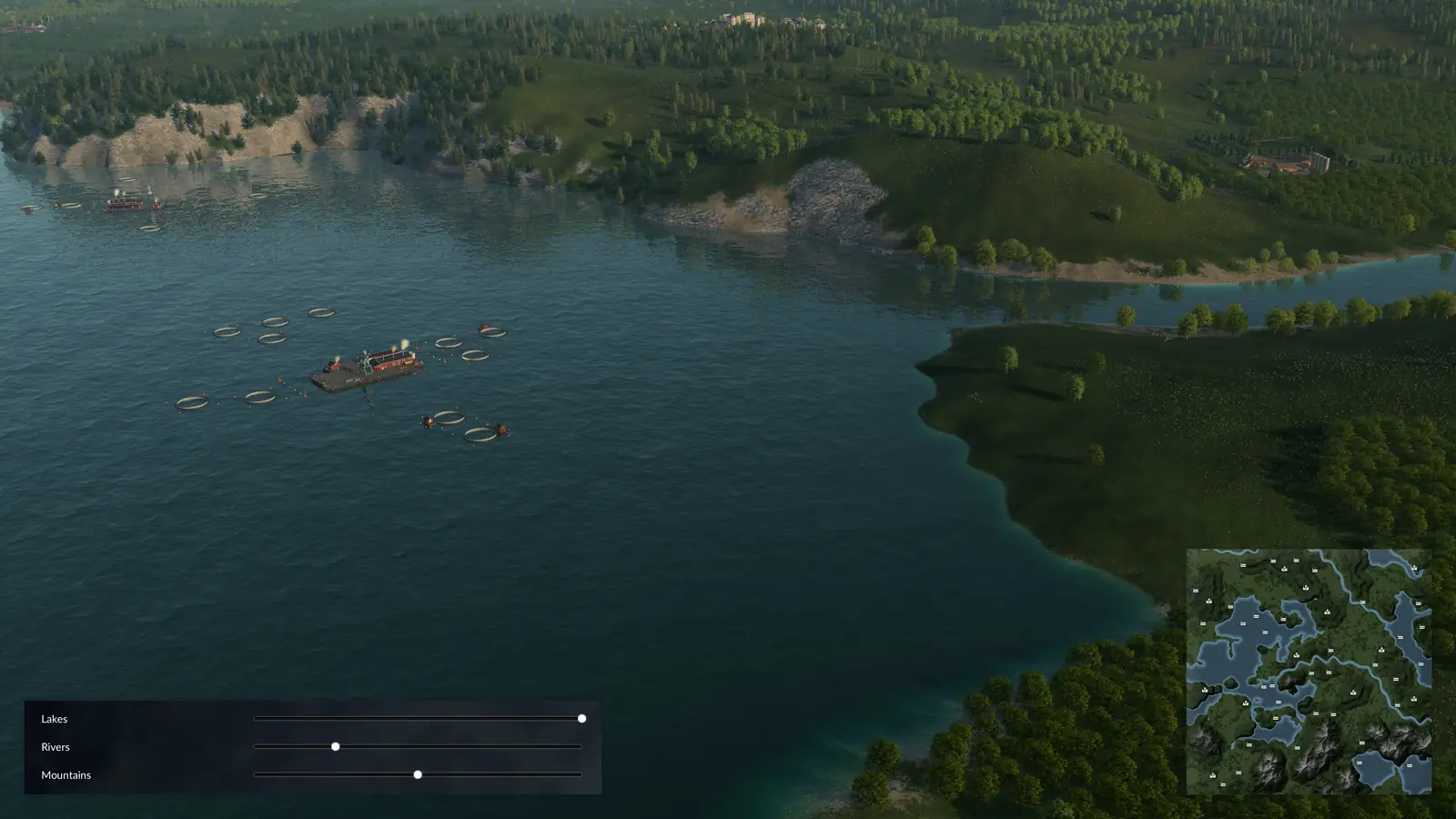
The Seed field sits in the World section of the map settings, next to Map Size and Map Format. The seed is the key for the random map generator: the same seed with the same settings creates the same map again. To rebuild a map later, or to give a friend the same one, note the climate, the seed and every other map setting. The town and industry generators in the map editor have seed fields of their own that work the same way.
Where the manual's tables disagree
The manual has one table of map sizes and one of heightmap resolutions. We checked all 40 entries against each other with the 4-meter rule above, and against the format each one belongs to. 37 add up. These three do not, and the picker flags them too:
- Tiny 1:4: The manual gives Tiny 1:4 exactly the same size as Tiny 1:3 in both of its tables (2.048 × 6.144 km, 513 × 1537 px), which is a 1:3 shape. We show the numbers as the manual prints them; check the size in game before you build a heightmap for it.
- Medium 1:4: The manual's two tables disagree here. The map size table says 5.632 × 22.528 km, but the heightmap table says 1537 × 6145 px, which works out to 6.144 × 24.576 km. The manual does not say which one is right, so check the size in game before you build a heightmap for it.
- Large 1:5: Both of the manual's tables give Large 1:5 as 6.144 × 32.256 km, a 1:5.25 shape rather than exactly 1:5.
The manual replaced its rounded sizes with exact ones on September 25, 2026. If you check one of these sizes in game, tell us what you see.
Frequently asked questions
What map sizes are in Transport Fever 3?
There are eight sizes: Tiny, Small, Medium, Large, Very Large, Huge, Megalomaniac, and Gigantomaniac, each in five formats from 1:1 to 1:5. Only Small, Medium, Large, and Very Large are offered by default. The other four are experimental and have to be switched on in settings.lua.
What is the biggest map in Transport Fever 3?
Gigantomaniac, one of the experimental sizes. As a square it is 28.672 × 28.672 km, 822.1 km² or 12.25 times a Small map. Its 1:2 format has the most land of any map (838.9 km²), and at 1:5 its long side reaches 64 km. Without the experimental switch, the largest is Very Large at 16.384 × 16.384 km.
How do I enable experimental map sizes?
Quit the game, open settings.lua in your userdata folder with a text editor, set experimentalMapFeatures to true, save the file and start the game again. The manual asks for at least 16 GB of RAM for these sizes, and the switch does not exist on console.
Which map sizes can I use on console?
Small, Medium, and Large. The manual says the console edition is limited to these because of memory limits, so Tiny, Very Large, Huge, Megalomaniac, and Gigantomaniac are not available there.
What resolution does my heightmap need?
One pixel for every 4 meters of map edge, plus one: pixels = meters ÷ 4 + 1. A Small square map (8.192 × 8.192 km) needs 2049 × 2049 px and a Very Large one 4097 × 4097 px. Save it as a 16-bit grayscale PNG in the heightmaps folder of your userdata folder.
Why does the game show a different map size?
The game rounds the sizes it displays. According to the manual, the exact values can be up to 250 m off the figures you see in game.
Can I change the map size in the map editor?
No. The climate, map size, and map format are fixed once the map editor has started, so pick them when you set up the new map.
Does the same seed always give the same map?
Only if the other settings match as well. The seed is the key for the random map generator: the same seed with the same settings creates the same map again.
Related guides and tools
The start year is chosen in the same map settings as the size, and the vehicle unlock dates guide shows which buses you can buy in each start year. To decide what the industries on your map should produce, use the production chain planner or look up any industry in Industries and Cargo Types.
Sources
All game facts on this page come from these pages of the official Transport Fever 3 manual:
- Map Sizes (sizes, formats, heightmap resolutions, the experimental switch; revised September 29, 2026)
- Settings (experimental settings in settings.lua; revised September 29, 2026)
- Game File Locations (where the userdata folder is; revised September 29, 2026)
- Map Editor (heightmap import and export; revised September 29, 2026)
- Free Game (map settings and seeds; revised September 29, 2026)
Checked on October 5, 2026. The five formats and eight sizes give 40 entries in each table. Seen something different in game? Let us know.